LAPTOPS
Connecting learning through BYOD
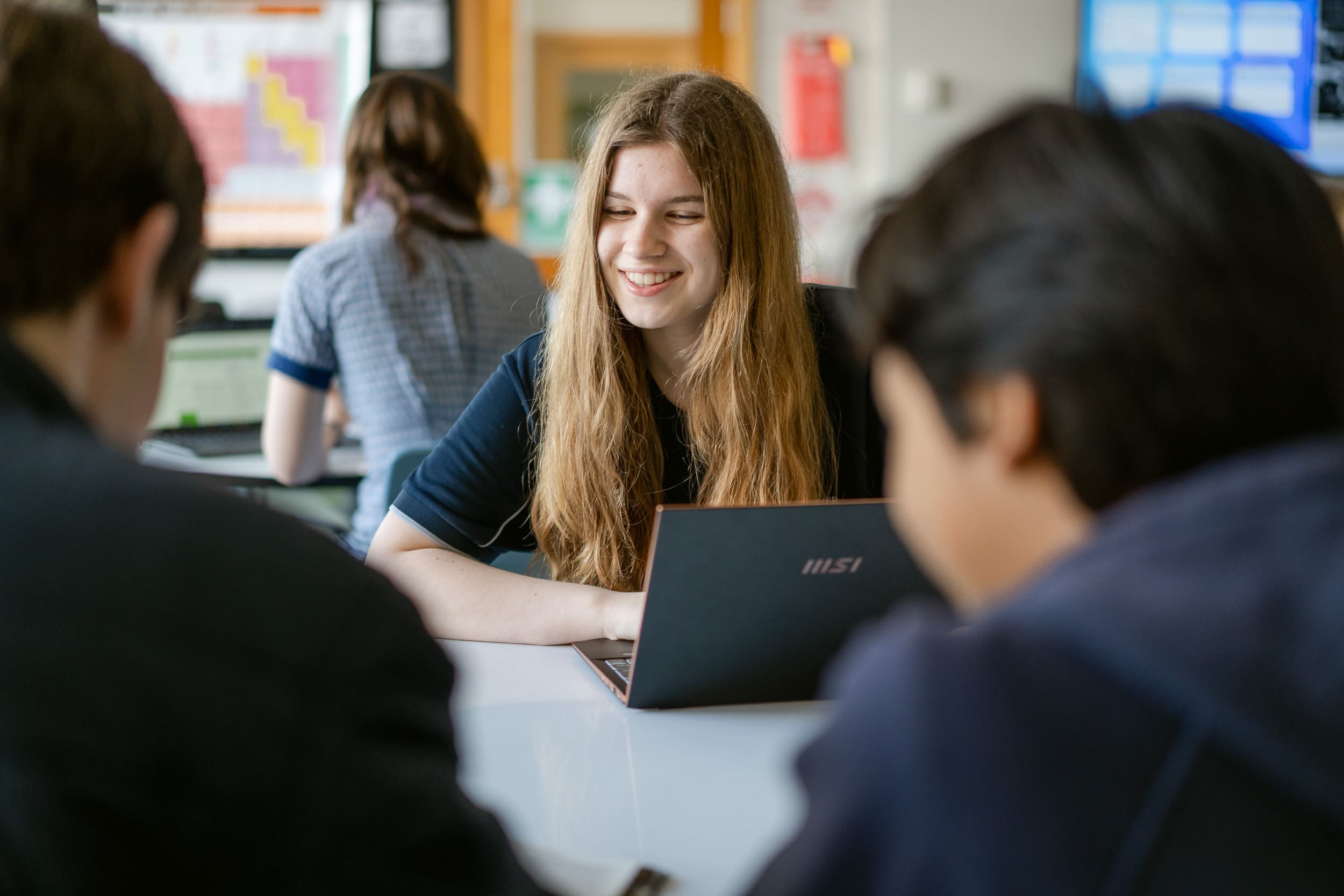
Mount Barker High School operates a Bring Your Own Device (BYOD) program to help students maximise their learning outcomes. Personal devices can connect to the Daymap platform at any time, providing continuous access to learning resources.
LAPTOPS
Benefits of having your own device
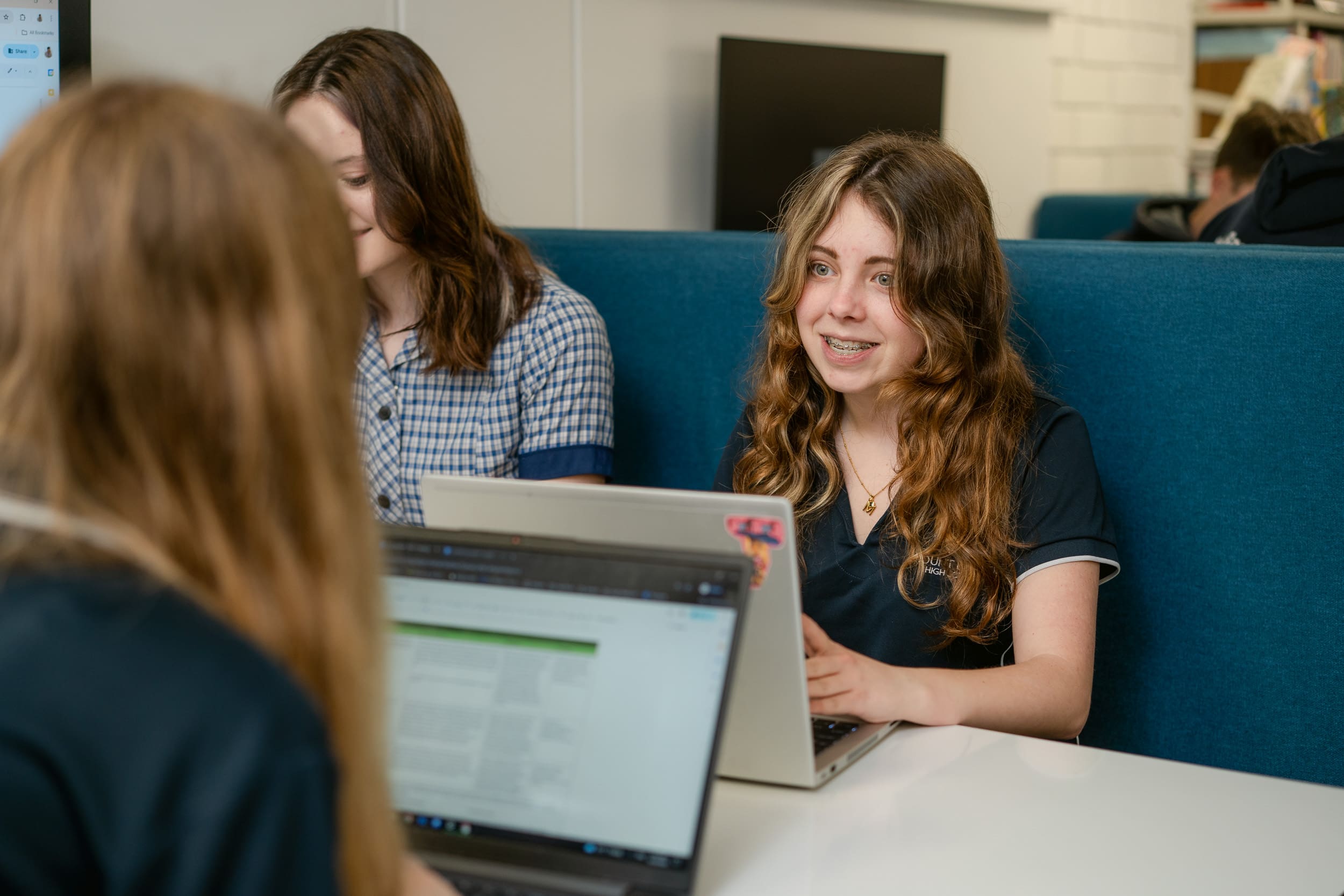
Having a personal laptop provides students with significant advantages.
- The device is available for the entire school day; learning is not restricted by the unavailability of school equipment/loan devices.
- Provides students with the primary tool to access online learning resources and educational applications, and store/access their school files.
- A seamless transition between home and school learning leads to a more consistent application of school work (assuming a suitable broadband connection at home).
- Research suggests that when students have ownership of their devices, their engagement in learning increases, ICT skills improve, and students become more versatile in demonstrating their learning outcomes.
- Students can become more autonomous learners, improving their self-reliance and resilience and providing a solid grounding for higher learning and employment.
For further information, contact the ICT team on 8391 1599 or email [email protected]
LAPTOPS
Learning with Technologies
Mount Barker High School requires all students to have access to a device to engage in learning activities. Learning with Technologies has established a laptop purchase program to help families afford laptops for their children.
With 36-month payment plans, ongoing support, and on-site servicing, it is a great way to supply and maintain the devices students need to excel in their studies.
Families are not required to purchase a laptop through this portal, but before purchasing a device, please ensure that it meets the minimum device requirements.
Please note the following:
- It is highly recommended that devices are covered through your private insurance, including accidental damage if possible (speak to your insurance provider)
- The school is not responsible for theft or damage caused to a device
- The Department for Education provides Office 365 to all students at no cost. Instructions on installing this software are provided during the first week of term 1 or when students start at the school
- Adobe CC and Fusion 360 are installed at no cost (if required)
- You do not need additional anti-virus software, as Windows Defender is sufficient
- The laptop must have a keyboard
- Android and Chrome Book devices are not supported
- *
LAPTOPS
Laptop requirements
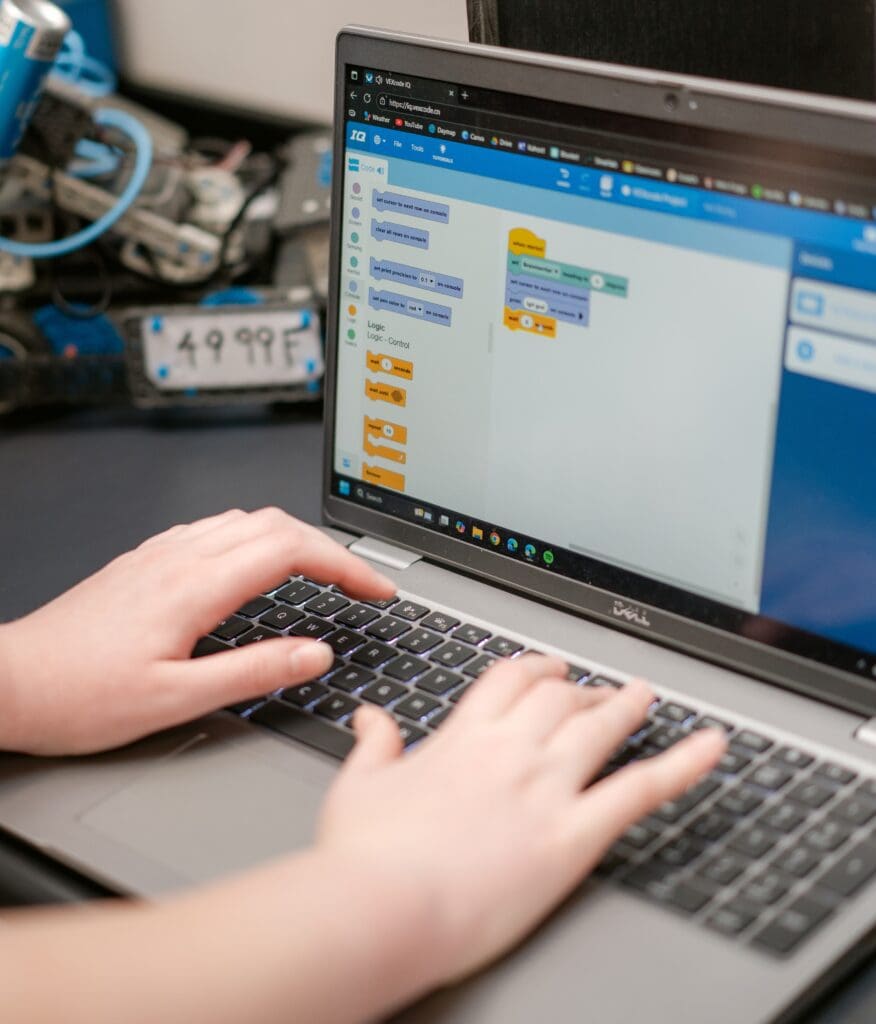
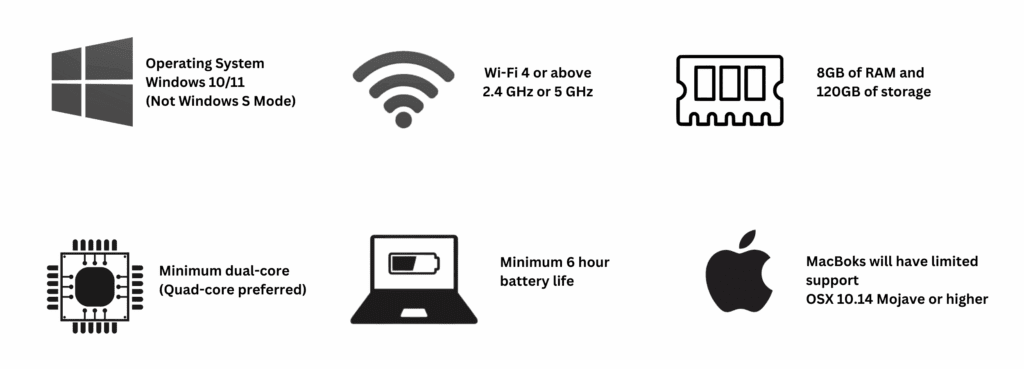
Mount Barker High School requires all students to have a laptop that meets the school’s minimum specifications.
Families are not required to purchase a device through Learning with Technologies; however, before purchasing a device, please ensure it meets the minimum requirements to support effective learning.
Frequently Asked Questions
No, the device provider will deliver it to your chosen address. You are encouraged to turn it on upon receipt and complete the initial setup. New students will be connected to school services during the first week of term 1.
Families may pay upfront via debit or credit card. LWT offers several payment options, including lay-by and Latitude Financial Services payment plans. Please visit the portal for more information.
That is acceptable, but you need to be aware of the school’s requirements. The computer must have a battery that can last an entire school day without recharging. Weight is also a consideration, as your child will be carrying it throughout the day for 40 weeks a year. Additionally, avoid ‘gaming’ laptops, as they are larger and heavier, with poor battery life due to their power consumption and additional lighting.
Please avoid Windows S-Mode, as the school does not support it.
If you have inadvertently purchased a computer with Windows S-Mode, you can remove S-Mode by following the steps provided here https://tinyurl.com/Remove-S-Mode
You do not need to purchase any additional software. Mount Barker High School provides all necessary software for students throughout their time at school. This includes licenses for Office 365 (Word, PowerPoint, etc.), Adobe Creative Cloud (Photoshop, Illustrator, etc.), Fusion 360, and any other specialised applications that may be required. There is no need for you to purchase these.
There is no need to purchase an antivirus software subscription such as Norton or McAfee. Microsoft includes its own anti-malware software, Windows Defender, by default in Windows. This is generally sufficient for most uses. However, if you desire additional protection, we recommend MalwareBytes, which can be easily found through a quick web search.
We advise against using Microsoft Family or other parental control software, as they can be overly restrictive. Instead, consider creating an administrator account that only you have access to, and a standard user account for your child. Instructions for creating these accounts can be found through a quick web search for ‘admin account creation’ and ‘standard account creation’. Please inform the school’s ICT team of the administration password so that we can install software or perform any necessary troubleshooting. You can do this via email at [email protected].
The use of VPN software is prohibited as it can be used to bypass the school’s filtering system, which breaches our duty of care and the ICT agreement signed by both you and your child. Additionally, free VPN software often contains malware that can harvest your data and passwords, allowing bad actors to gain access to your computer.
It is anticipated that the device will be suitable for school use for at least 3 years. Depending on the subjects your child chooses in senior school, a higher-specification device may be required.
Students are provided with a school email account, which they can access both at school and at home. Private email accounts may be blocked by the Department for Education when at school, depending on filtering settings.
Yes, students will be able to search for and connect to other wireless networks if access is permitted. This includes home internet connections.
Yes, the device belongs to you and not the school. However, these downloads may be lost if the device needs to be reformatting to fix errors. You must ensure that any downloads do not infringe copyright. Good backup practices are also recommended.
Yes, students with a device will have access to the school network and its printers. Students may also print from any school-owned device.
The devices come with a 3-year warranty. The ICT help desk will assess the device. The school’s ICT support will manage minor faults. The manufacturer is responsible for all major faults, and the school will manage this process.
You own the computer, not the school. The warranty does not cover accidental damage or loss. We strongly recommend that parents have insurance for the device, either through an existing policy that covers the device at home and school, or by taking out insurance at the time of purchase with LWT.
- Restarting your computer can resolve many issues. We recommend restarting your computer weekly, preferably on Friday after school, so it is ready for use on Monday.
- Ensure your computer is fully charged at the start of each school day. Charge the laptop overnight and verify that it is plugged in and the power point is turned on before leaving it for the night.
- Daymap is the school’s learner management system used for assigning tasks, tracking attendance, and communicating with families. It is essential to know how to access and use it.
- Your password is personal and must be kept private and secure. This school password will remain the same throughout your time at school, so please ensure that no one else knows it.
- Always supervise your child when they are using a computer. Have them use it in an open area with the screen facing you so you can monitor their activity.
- Everyone needs to understand the basics of online safety. We recommend reviewing the Australian Signals Directorate’s cybersecurity guide. https://www.cyber.gov.au/learn-basics